Deploying a Dockerized Node.js App on AWS Using ECS and ECR

In this blog, I’ll walk through how I deployed my Node.js application from Docker to AWS using Amazon ECS (Elastic Container Service), ECR (Elastic Container Registry), and EC2.
This hands-on guide is perfect for beginners trying to understand how containers move from local to cloud.
Along the way, I’ll also explain each AWS service, share the exact steps I performed, and highlight common issues learners face.
🔧 Services Used & Their Purpose
1️⃣ Amazon EC2
Amazon Elastic Compute Cloud (EC2) provides virtual machines in the cloud.
I used EC2 to:
Install Docker & AWS CLI
Build the Docker image
Push the image to ECR
Why Use EC2 for Docker Builds?
We are using EC2 only as a lightweight build environment to:
Install Docker
Clone the application code
Build a Docker image
Push the image to ECR
This EC2 machine acts like your Linux laptop in the cloud.
You can perform the same steps locally on Ubuntu, PopOS, Debian, Fedora, etc.
EC2 simply avoids local configuration issues and keeps everything inside AWS.
2️⃣ Amazon ECR
Amazon Elastic Container Registry is a fully managed Docker image registry.
I used Public ECR to store:
- My Docker image (
node-app)
You push your Docker images to ECR so that ECS can pull & run them.
3️⃣ Amazon ECS
Amazon Elastic Container Service is a fully managed container orchestration service.
It allows you to run Docker containers at scale.
In this deployment:
I created a cluster
Then a task definition
ECS pulled my image and ran the container
4️⃣ IAM (Identity & Access Management)
IAM ensures secure access to AWS services.
Key roles used:
IAM user with ECR permissions
EC2 role (optional for automation)
Without correct permissions, Docker cannot push to ECR and ECS cannot pull images.
📝 Step-by-Step Deployment Guide
Below are the cleaned and corrected steps of what I performed.
🖥️ Step 1: Create EC2 Instance
Go to EC2 → Launch Instance
Name:
ecs-demo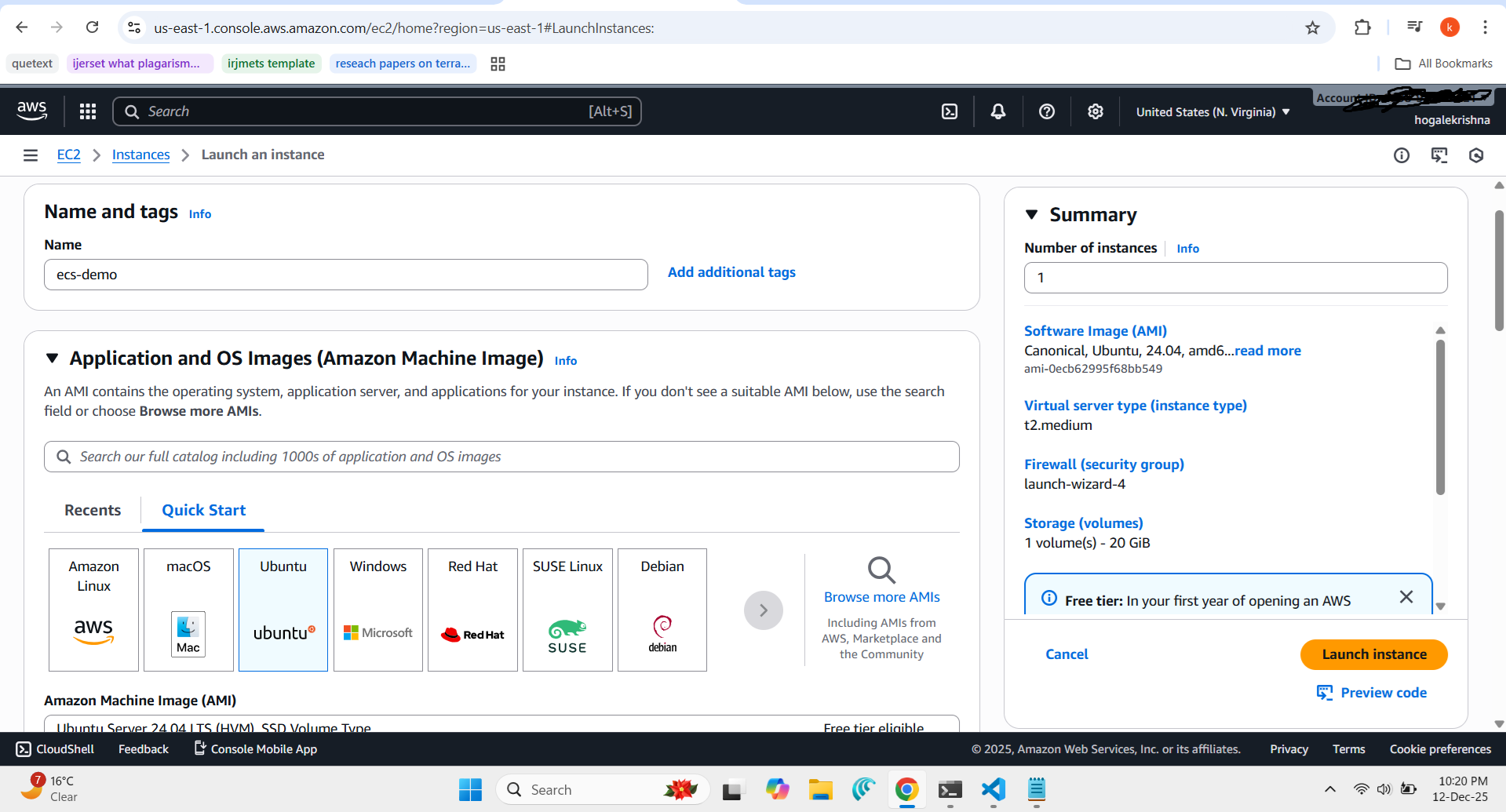
Instance Type: t2.medium
Key Pair: Create a new
.pemkeyStorage: 20 GB
Security Group:
SSH (22)
HTTP (80)
Custom TCP (8000)
Launch the instance.
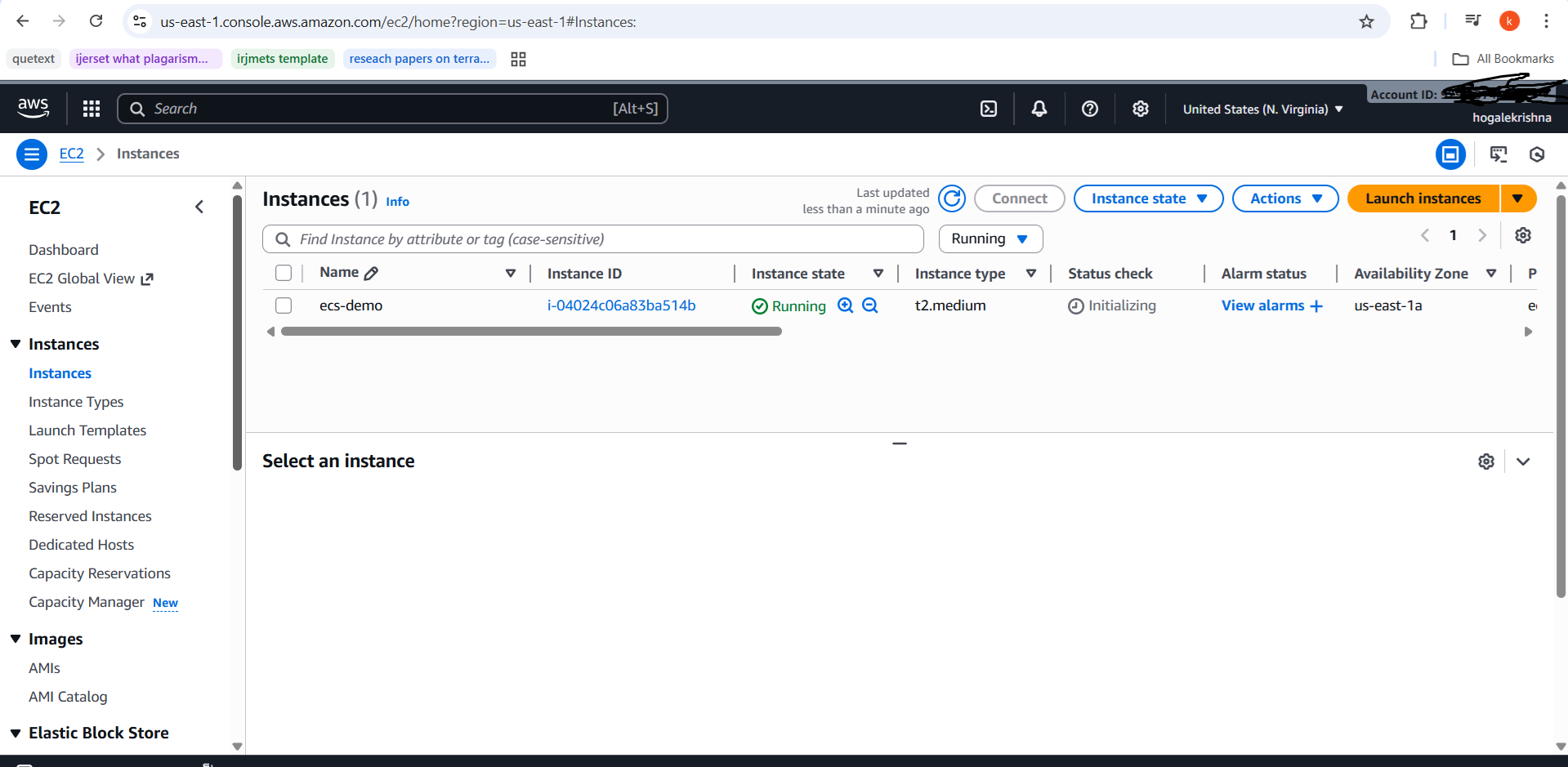
🔌 Step 2: Connect & Install Required Tools
Connect using EC2 Instance Connect.
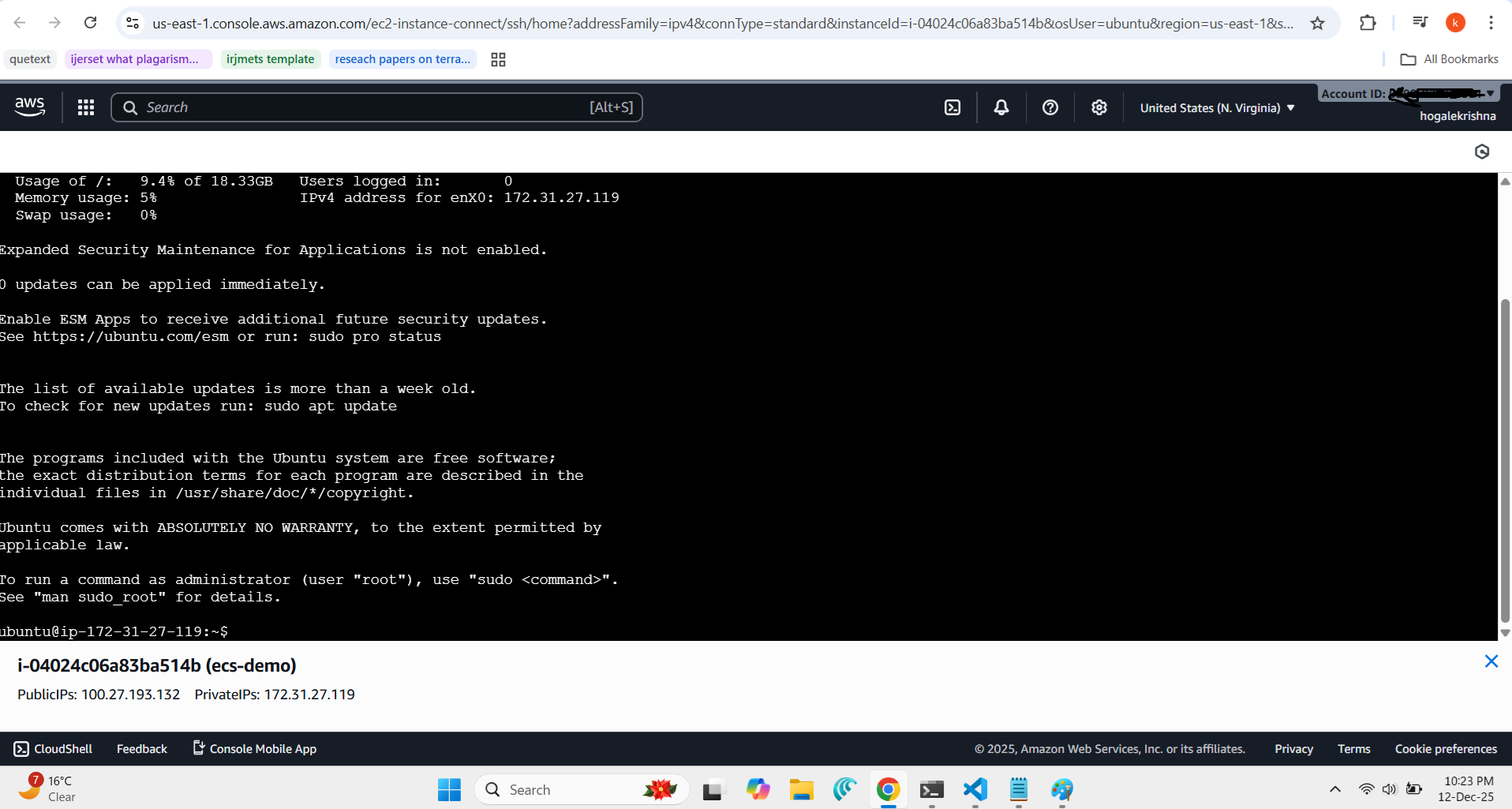
Update the system
sudo apt update
Install Docker
sudo apt install docker.io -y
sudo usermod -aG docker $USER
(Logout & login again or reboot)
Install AWS CLI
Option 1:
curl "https://awscli.amazonaws.com/awscli-exe-linux-x86_64.zip" -o "awscliv2.zip"
sudo apt install unzip -y
unzip awscliv2.zip
sudo ./aws/install
Option 2:
sudo snap install aws-cli --classic
🧑💻 Step 3: Clone Your Node.js Project
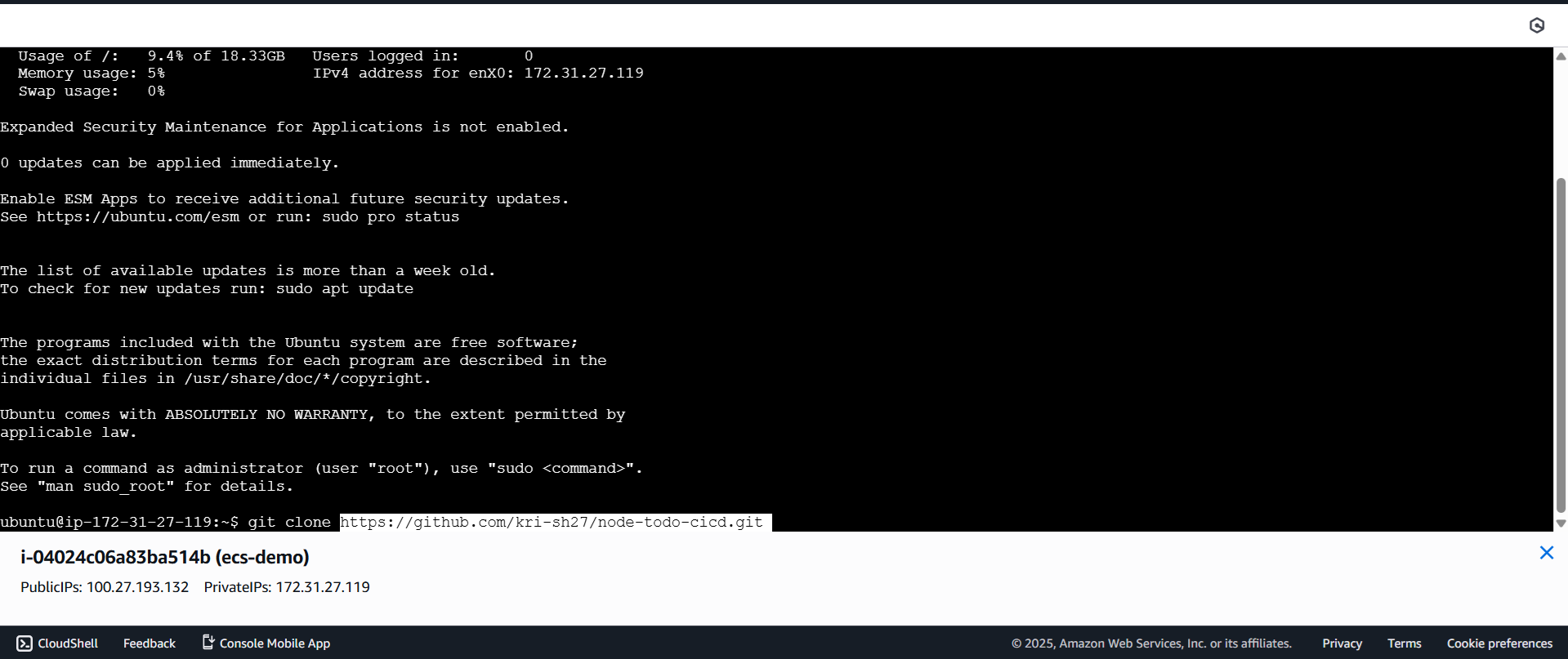
git clone https://github.com/kri-sh27/node-todo-cicd.git
cd node-todo-cicd
🐳 Step 4: Create Public ECR Repository
Go to Amazon ECR
Select Public
Create repo → Name:
node-app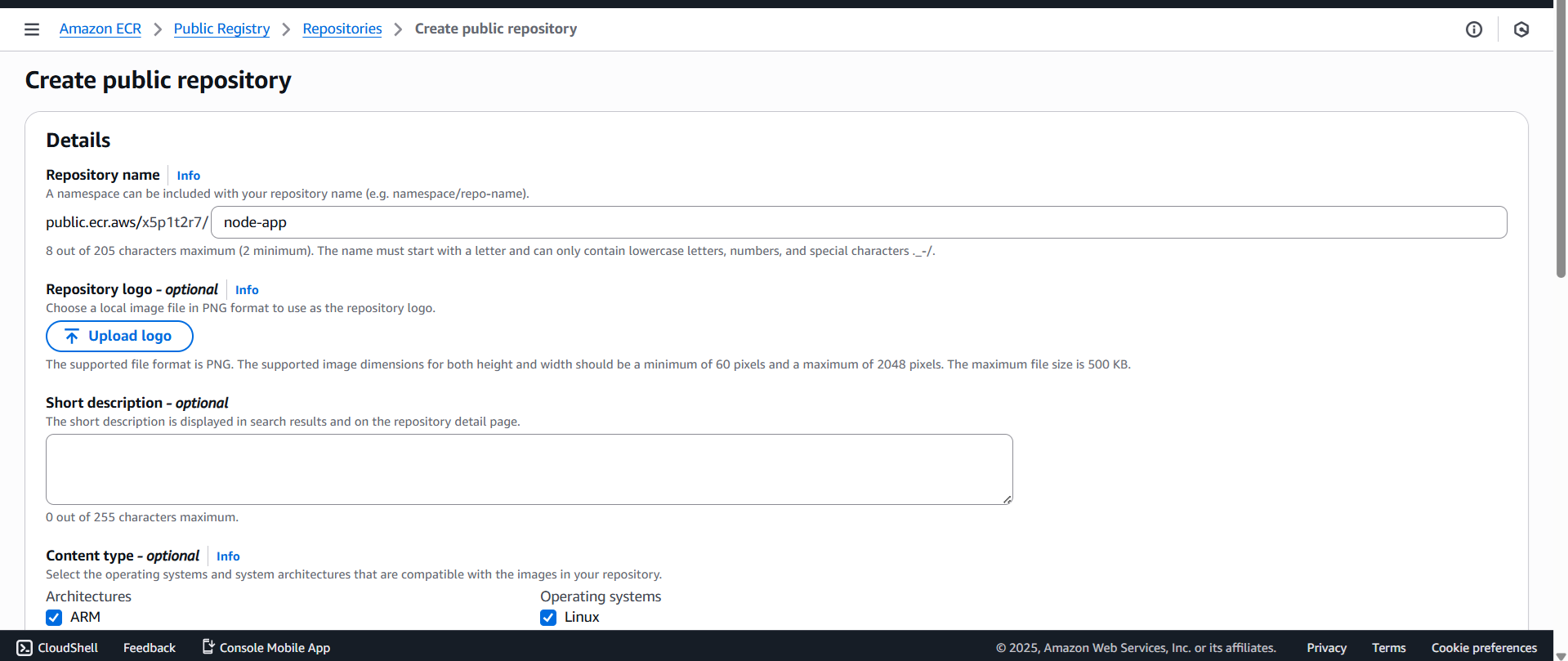
Click View push commands
🔐 Step 5: IAM User for ECR
Create a new IAM user with permissions:
AmazonElasticContainerRegistryPublicFullAccessAmazonElasticContainerRegistryPublicPowerUserAmazonElasticContainerRegistryPublicReadOnly
Then configure:
aws configure
Provide:
Access key
Secret key
Region (example:
ap-south-1)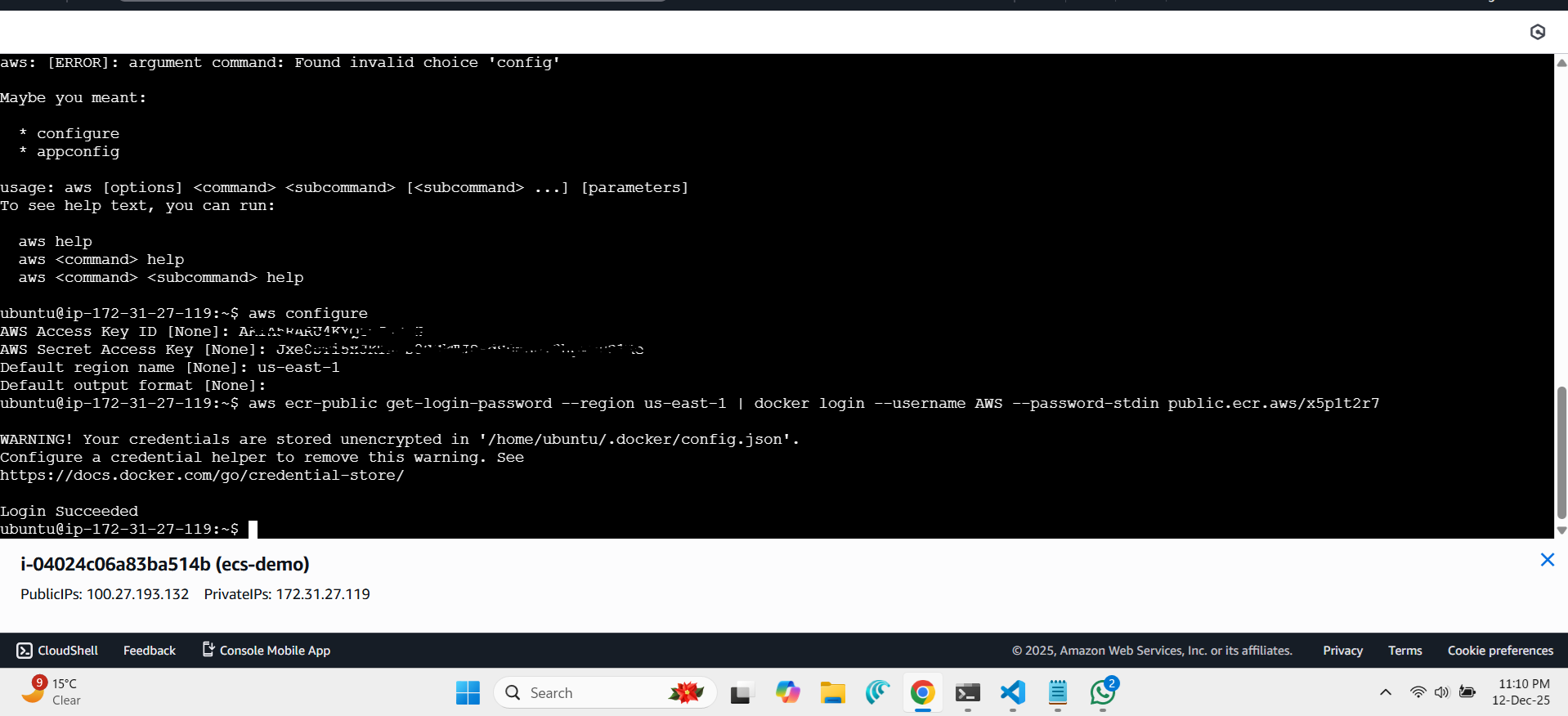
📦 Step 6: Build & Push Docker Image
Login to ECR
(From push commands)
Build Docker image
docker build -t node-app .
Tag the image
docker tag node-app:latest public.ecr.aws/x5p1t2r7/node-app:latest
Push to ECR
docker push public.ecr.aws/x5p1t2r7/node-app:latest
🚀 Step 7: Deploy on ECS
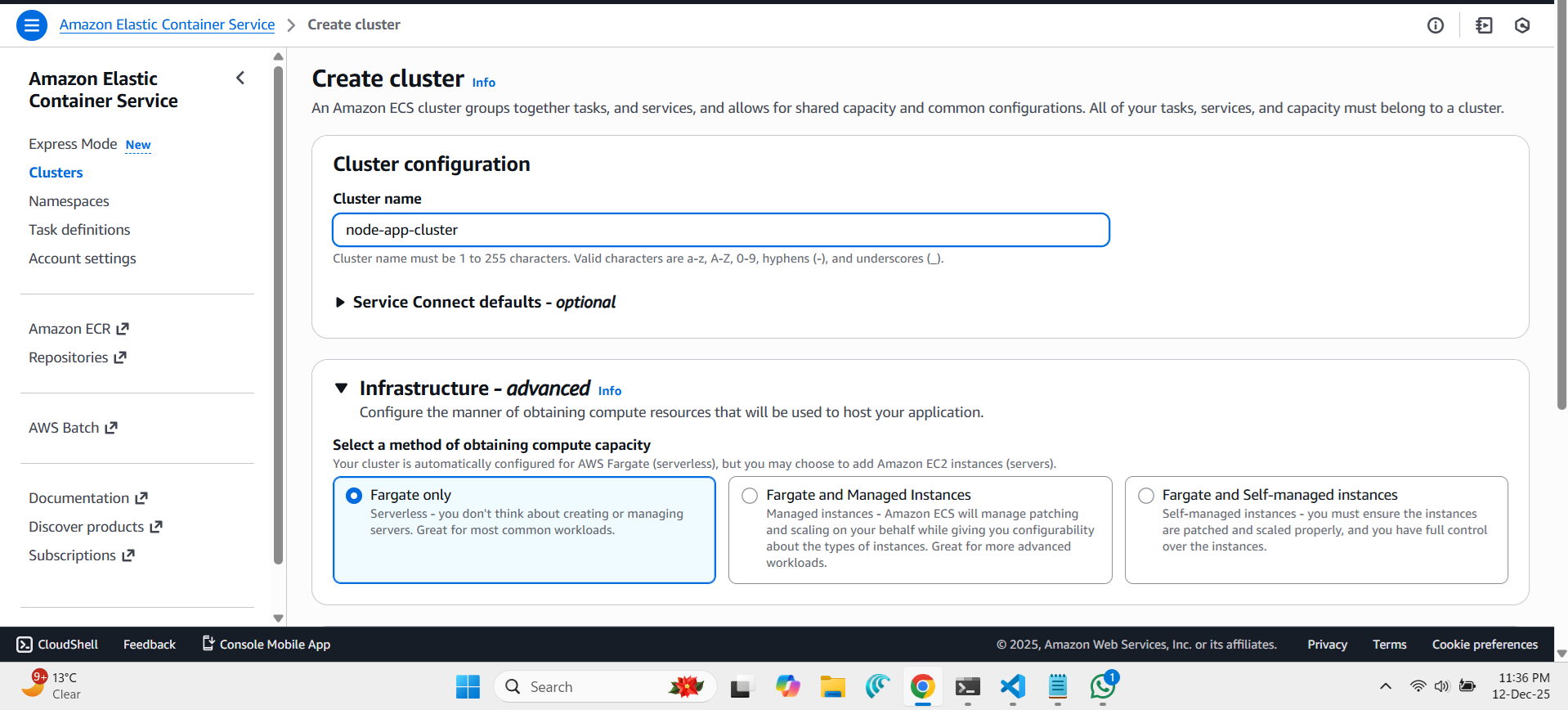
Create Cluster
Go to Amazon ECS
Create cluster → EC2 or Fargate (depending on your setup)
Create Task Definition
Name: node-todo-app-td
Add container:
Port mapping: 8000
Run the Task
Deploy → Run task
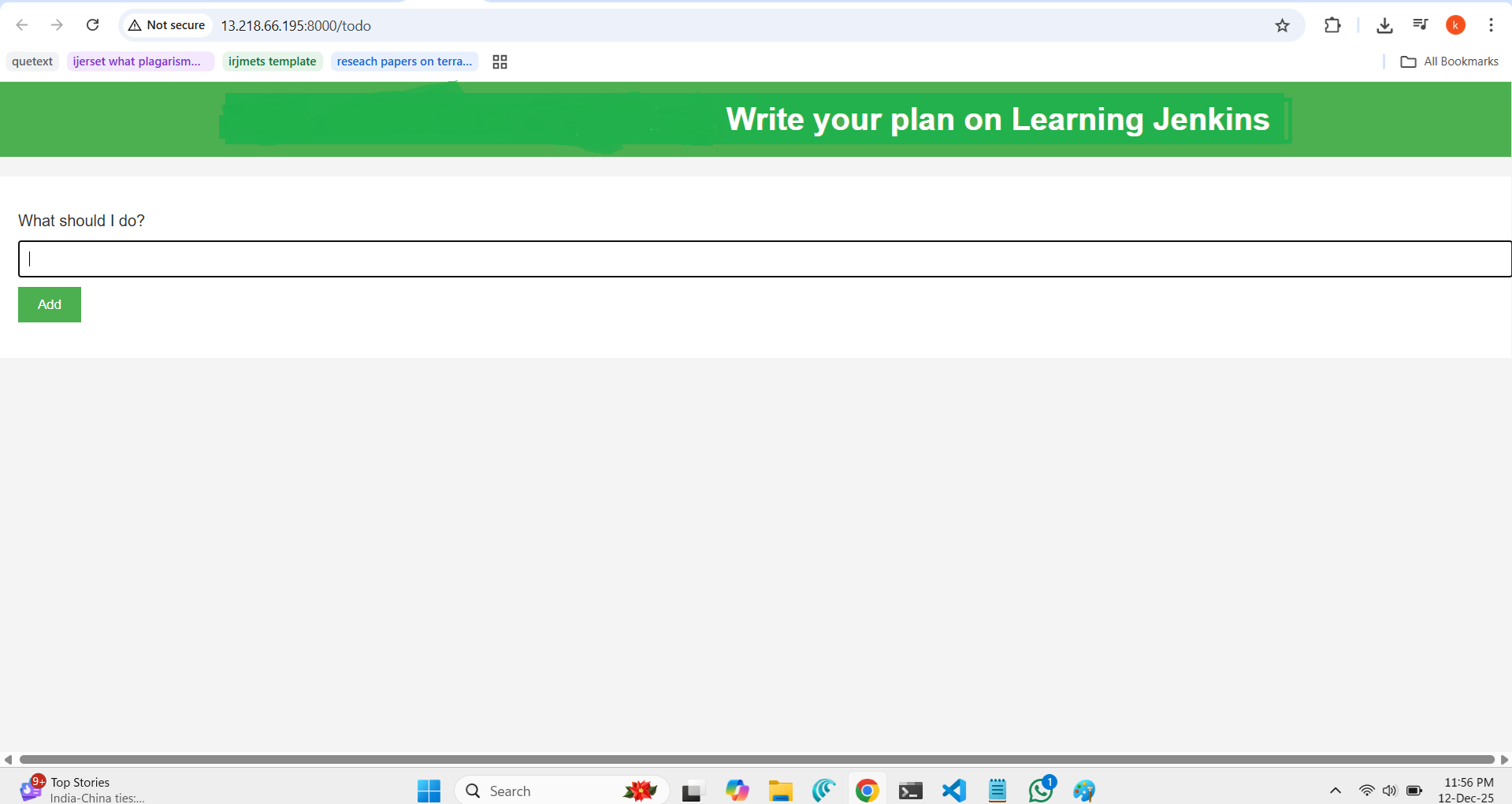
🌐 Step 8: Access the App
Open ECS task
Copy the Public IP
Open in browser:
http://<public-ip>:8000
Example:
http://13.218.66.195:8000
⚠️ If App Is Not Accessible
This is common.
Fix:
Go to Task → Configuration
Click ENI ID
Open Security Group
Add inbound rule:
Type: Custom TCP
Port: 8000
Source: 0.0.0.0/0
❗ Common Issues Learners Face (Important!)
1. Docker Permission Denied
Solution:sudo usermod -aG docker $USER
2. AWS CLI not installed correctly
Fix using:sudo snap install aws-cli --classic
3. ECR push fails — Access Denied
Cause: Missing IAM permissions.
Add:
AmazonElasticContainerRegistryPublicFullAccess
4. ECS task fails to start
Reasons:
Wrong port exposed
Wrong container image
No internet access in subnet
5. App not opening in browser
Often due to:
Security group missing port 8000
ENI attached to wrong SG
Container running but app binding to localhost only
6. Docker image too large
Optimize by using:
node:alpine
🎉 Final Thoughts
This Docker → ECR → ECS deployment is a strong foundation for:
CI/CD pipelines
Microservices deployments
DevOps project building
About the author
- I am an Information Technology Analyst at NTT DATA North America, where I specialize in DevOps, automation testing, and cloud-native deployments. Over the past 3 years, I’ve built CI/CD pipelines, test automation frameworks, and Generative AI solutions that help organizations streamline their workflows and improve efficiency. My Background - I studied at the Indian Institute of Technology, Patna. - Since July 2022, I’ve been contributing to projects at NTT DATA North America. My Skills - Automation Testing: REST API and UI automation using Java, Selenium, REST Assured, TestNG. - DevOps Tools: GitHub Actions, Jenkins, Docker, Terraform, Kubernetes, Azure DevOps, AWS. - Programming: Proficient in Python and Java. - Cloud & Microservices: Deploying Python-based applications on AWS EC2, integrating with MySQL and OpenAI APIs. - Monitoring & Performance: Experienced with Datadog, Grafana, JMeter, Gatling. My Achievements - Improved test efficiency by 40% through automation frameworks. - Led Generative AI initiatives, including prompt engineering, LangChain workflows, and retrieval-augmented generation (RAG) systems. - Enhanced application performance by 10% through API call caching and load testing. My Professional Presence I am active on LinkedIn, where I have over 4,000 followers and 500+ connections
Comments
Join the discussionNo comments yet. Be the first to comment.
